
Camera M 10 iPhone 18 Pro Update
As Camera M celebrates its ninth year, we’re excited to introduce version 10, featuring aperture control and exposure priority modes.
First up: variable aperture control, introduced with the iPhone 18 Pro series.
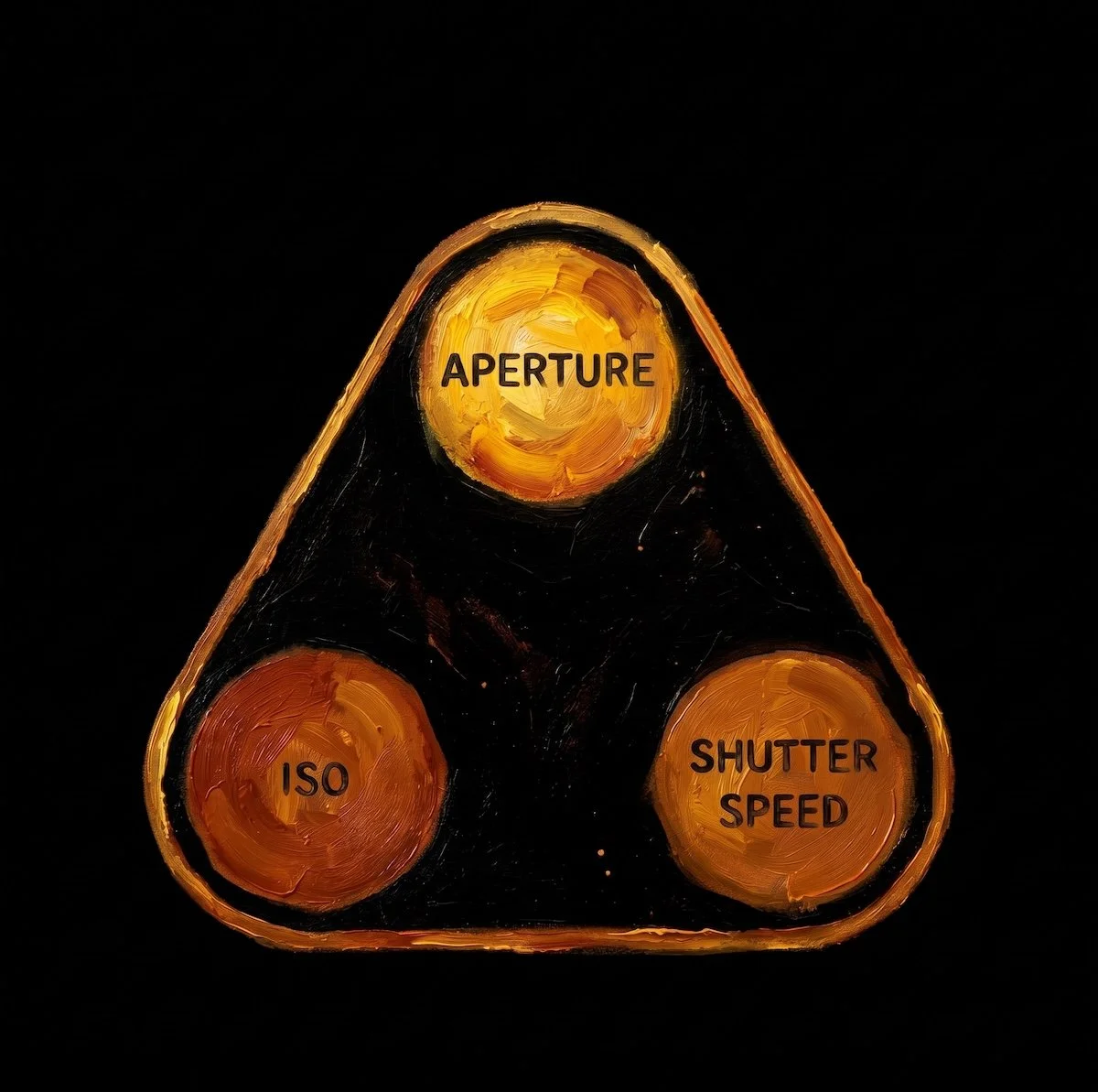
Exposure Triangle — Complete
This year, we complete the exposure triangle by adding manual aperture control to the exposure screen, alongside the existing ISO and shutter speed controls.
Variable Aperture Control
Camera M has always been about camera controls. Since 2017, it has offered photographers a full range of manual settings.
From the beginning, we designed the exposure screen as a split screen, with ISO and shutter speed controls on either side. Photographers can adjust both simultaneously. We also anticipated that variable aperture might one day come to iPhone—and that its control would sit at the top of the screen, running horizontally. So we planned ahead.
This year, the iPhone 18 Pro series gained variable aperture for its main camera, covering both 1× and 2×. The physical aperture can adjust from f/1.48 to f/4.0. The native Camera app offers four presets—f/1.48, f/1.8, f/2.8, and f/4.0—while developers have access to the full range of aperture values.
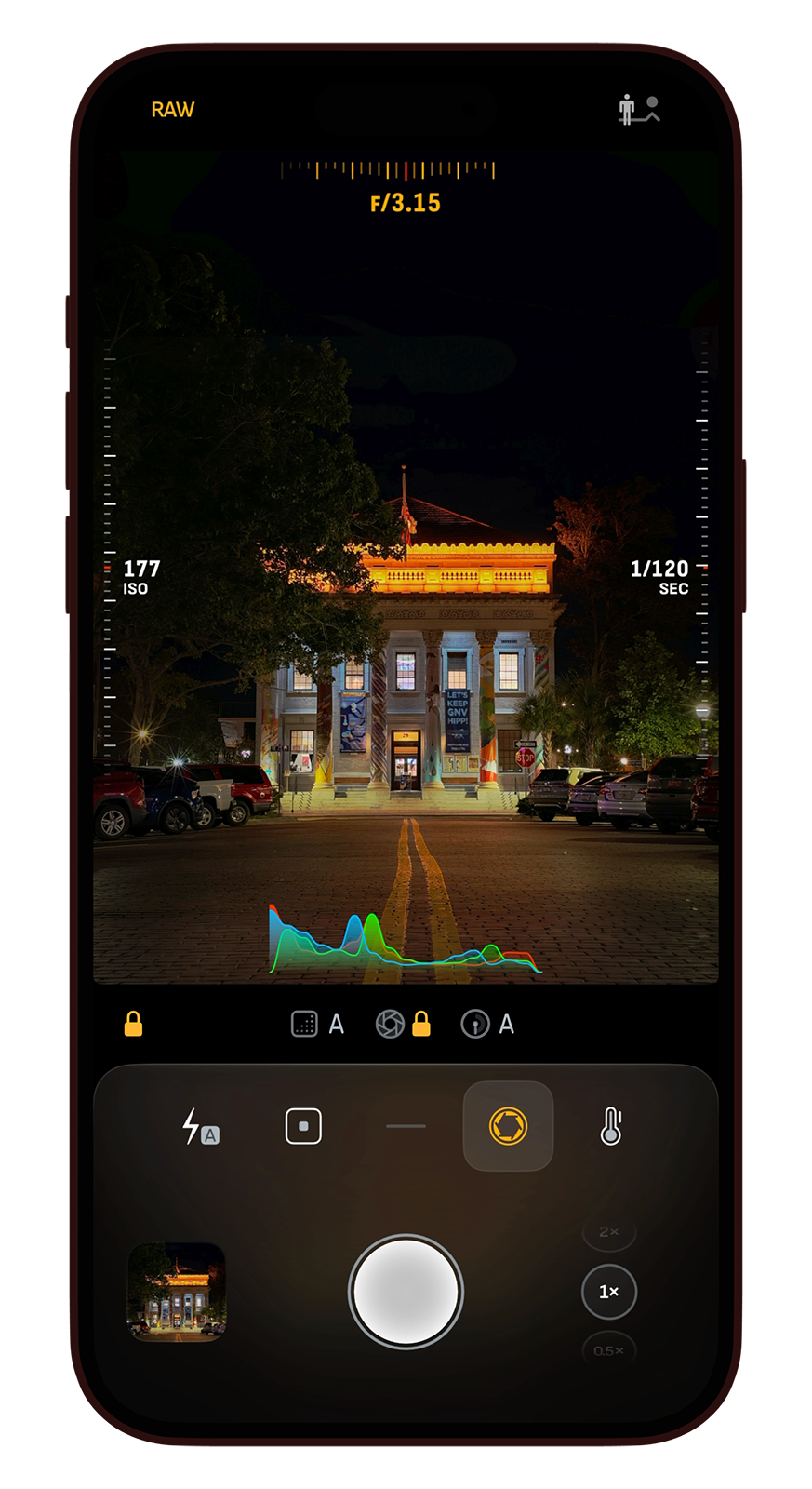
How to Adjust Aperture
On the exposure screen, you’ll find the variable aperture gauge at the top. Drag sideways anywhere on the screen to adjust the aperture. ISO and shutter speed controls work as before.
The gauge expands and responds to your touch, with inertia enabled by default. For finer, more precise adjustments, drag downward away from the gauge to slow the response. This gesture works for all adjustments in Camera M.
Aperture is fully variable by default. To use the recommended preset values instead, turn on Standard Presets in Settings.
At the bottom of the screen, the Control Strip includes an Aperture Lock/Auto button. Tap it to lock the current aperture value or return aperture to Auto.
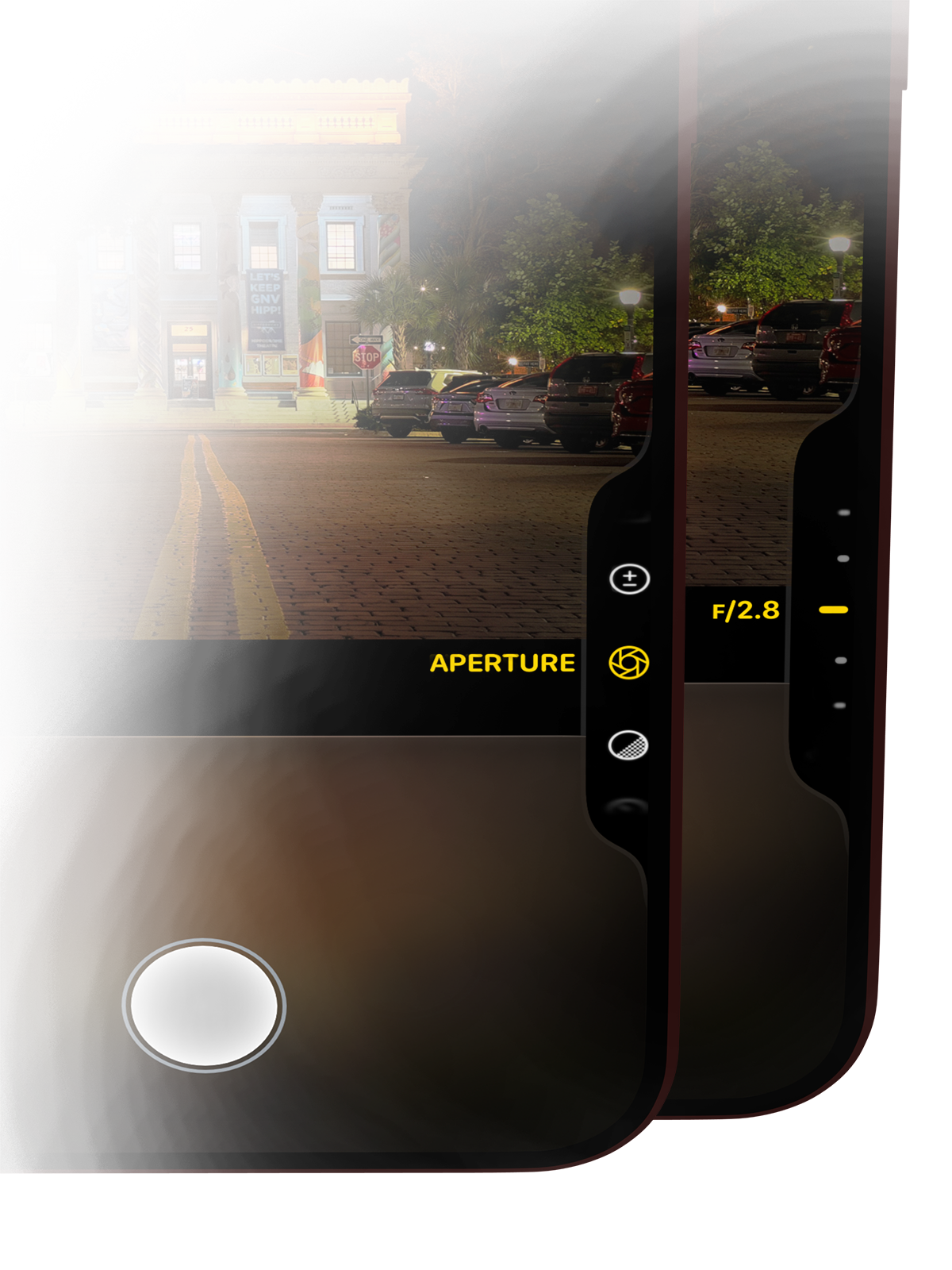
Use Camera Control to Adjust Aperture
You can also use Camera Control to set the aperture to a desired preset. Camera M intelligently adjusts the exposure priority mode based on the current ISO and shutter speed settings.
Aperture Priority and Shutter Speed Priority Modes
Until now, iPhone camera controls let you lock ISO and shutter speed together, or leave both on Auto. There were no priority modes, so we’d been eager to see that change. This year, the iPhone 18 Pro series introduced Aperture Priority and Shutter Speed Priority.
With variable aperture completing the exposure triangle, we spent a lot of time considering how to bring these modes into Camera M. We considered adding buttons to switch between modes such as Av and Tv, but that didn’t feel right. Camera M has a distinctive exposure screen, so we looked for a simpler way to adjust any of the three exposure settings.
We think the result feels beautiful and intuitive, and there’s a lot to share about how it works:
A Simple Theme
AUTO = White
Locked = Orange
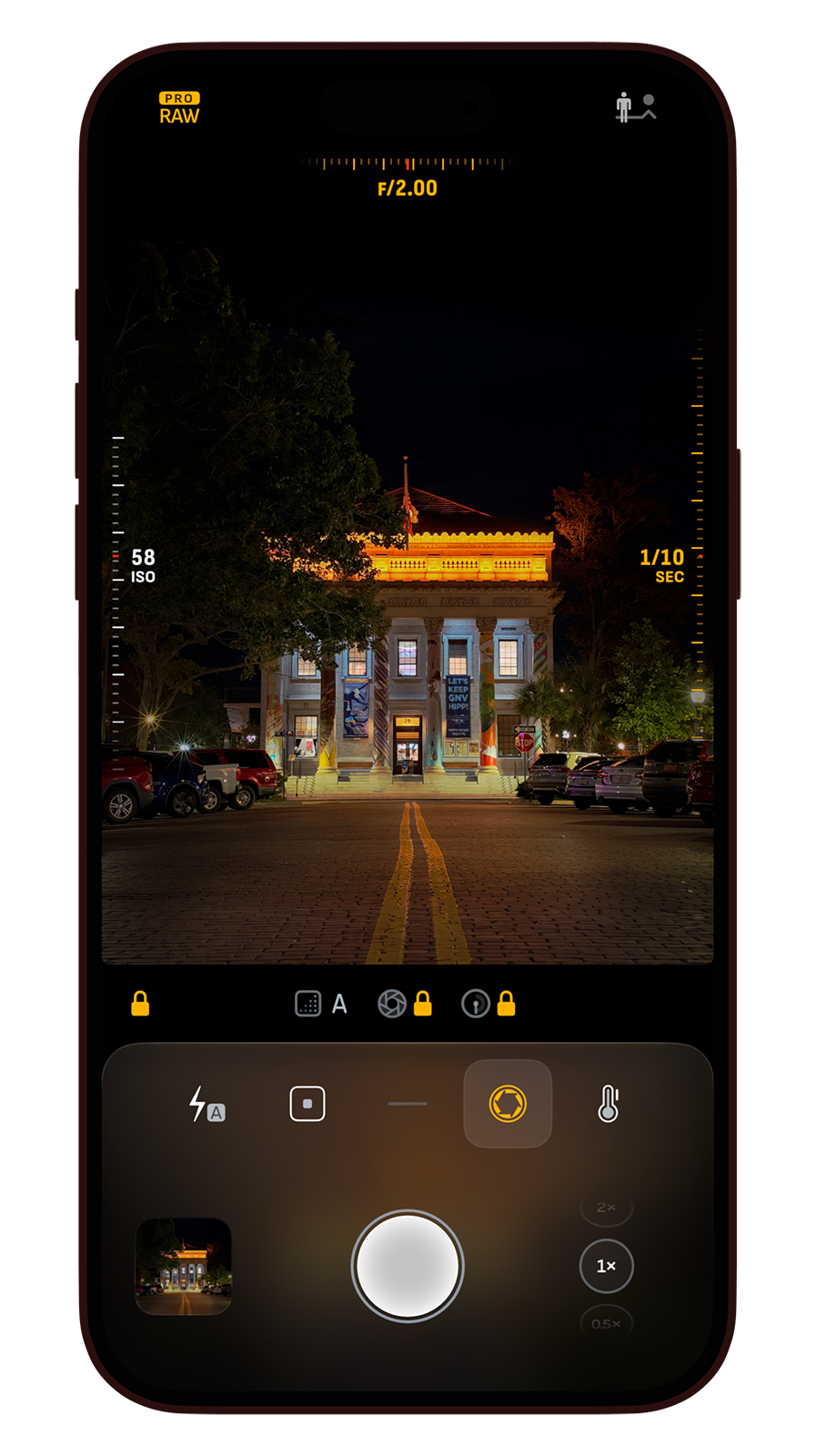
Updated Exposure Screen
The simple color theme—orange for locked, white for Auto—carries through to the new priority modes.
In this screenshot, shutter speed and aperture are locked, while ISO remains on Auto. The buttons in the Control Strip below show the current status of each setting.
Tap the button in the lower-left corner to switch all settings to Auto, or tap it again to restore the previous settings.
Pretty simple, right?
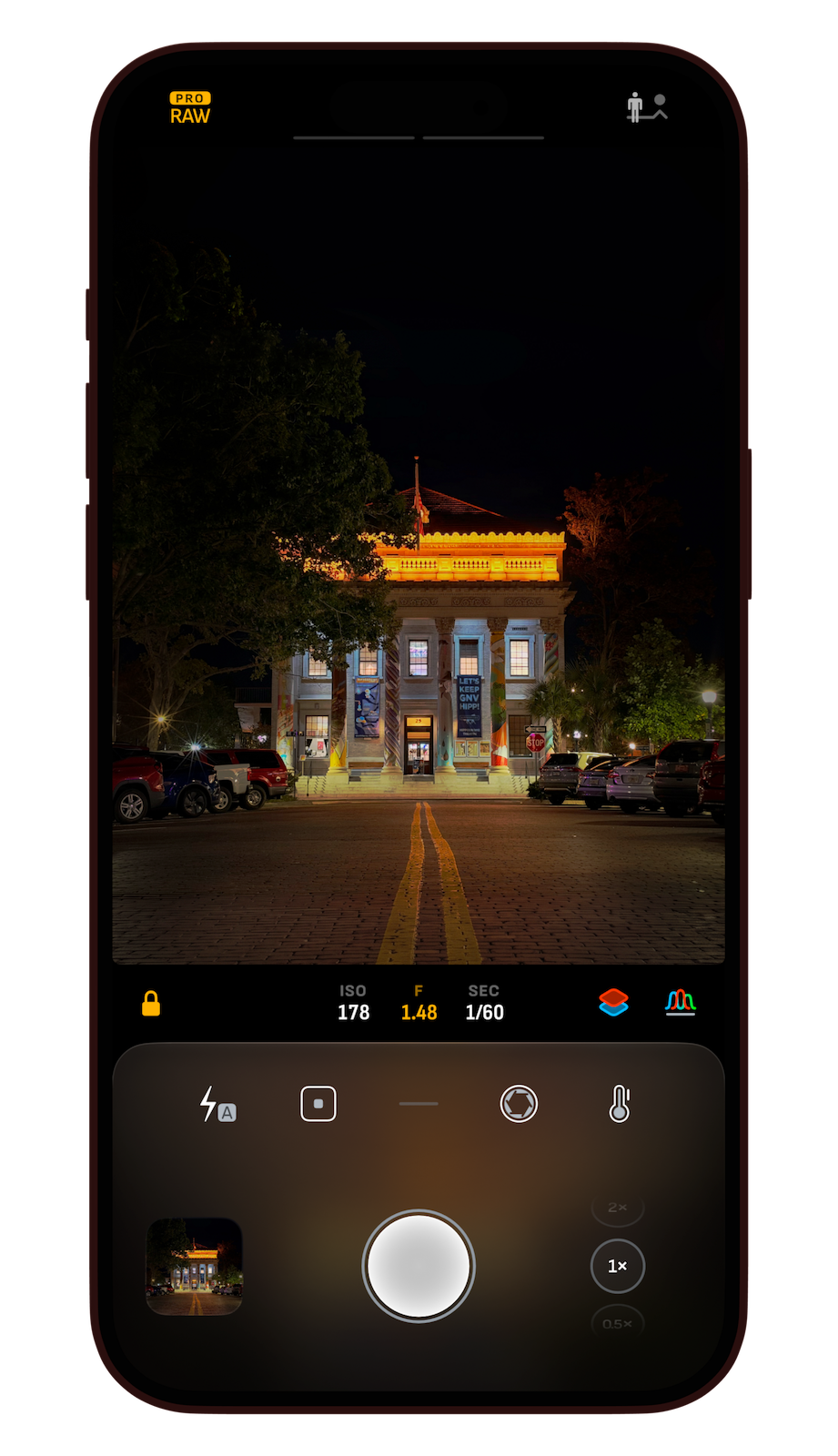
Updated Main Screen
The same color them percolates in to the main screen as well here. Screen shot showing here illustrates the new aperture priority mode where aperture is locked, but ISO and shutter speed is left auto. The usual color theme is present in the exposure settings button.
Tapping the button on the left corner toggles everything back to auto, wise versa.
Available Combinations
Not every combination is supported. For example, ISO Priority isn’t available. The camera system needs to maintain extremely fast shutter speeds across a wide ISO range.
| ISO | APERTURE | SHUTTER | |
|---|---|---|---|
| Auto | Auto | Auto | ✓ |
| Auto | Auto | Locked | ✓ |
| Locked | Auto | Auto | ✗ |
| Locked | Auto | Locked | ✗ |
| Auto | Locked | Auto | ✓ |
| Auto | Locked | Locked | ✓ |
| Locked | Locked | Auto | ✗ |
| Locked | Locked | Locked | ✓ |
48 MP Capture
All the new priority modes support 48 MP capture on the iPhone 18 Pro series. Supported formats include ProRAW, HEIF, JPEG, PNG, and TIFF. Standard RAW capture remains limited to 12 MP.
Variable aperture control and the new exposure priority modes are currently available only on iPhone 18 Pro and iPhone 18 Pro Max. We expect future Pro models to support them as well.
Other Updates
Aperture Value Display
On iPhones, you can now see all three exposure settings at a glance on the main camera screen: ISO, aperture, and shutter speed.
ProRAW
ProRAW now uses the JPEG XL codec on supported devices.
Exposure Offset Gauge
The exposure offset gauge shows how the camera’s automatic exposure system views the current exposure, helping guide your manual adjustments. On modern iPhones, it now sits at the top of the screen, leaving more of the camera preview unobstructed.
Histogram
Our beautifully animated histogram is both useful and easy to read. You can now drag it to the top or bottom of the screen, and Camera M will remember its position next time.
App Launch
We’re committed to keeping Camera M fast and lightweight as we add new features. In version 10, we’ve improved launch times so the camera preview appears sooner, while also reducing energy use compared with previous versions.
Accessibility
Camera M is designed to make manual photography accessible on iPhone and iPad, and we’re continually working to improve the experience. When Increase Contrast setting is enabled, semi-transparent backgrounds now appear behind labels for all manual controls, making them easier to read. Please note that you can set per-app accessibility settings where you can have just Camera M open with larger fonts, increased contrast, or other settings.
Other
We’ve made several small updates across the app to improve the user interface as part of our ongoing efforts to make your experience better.